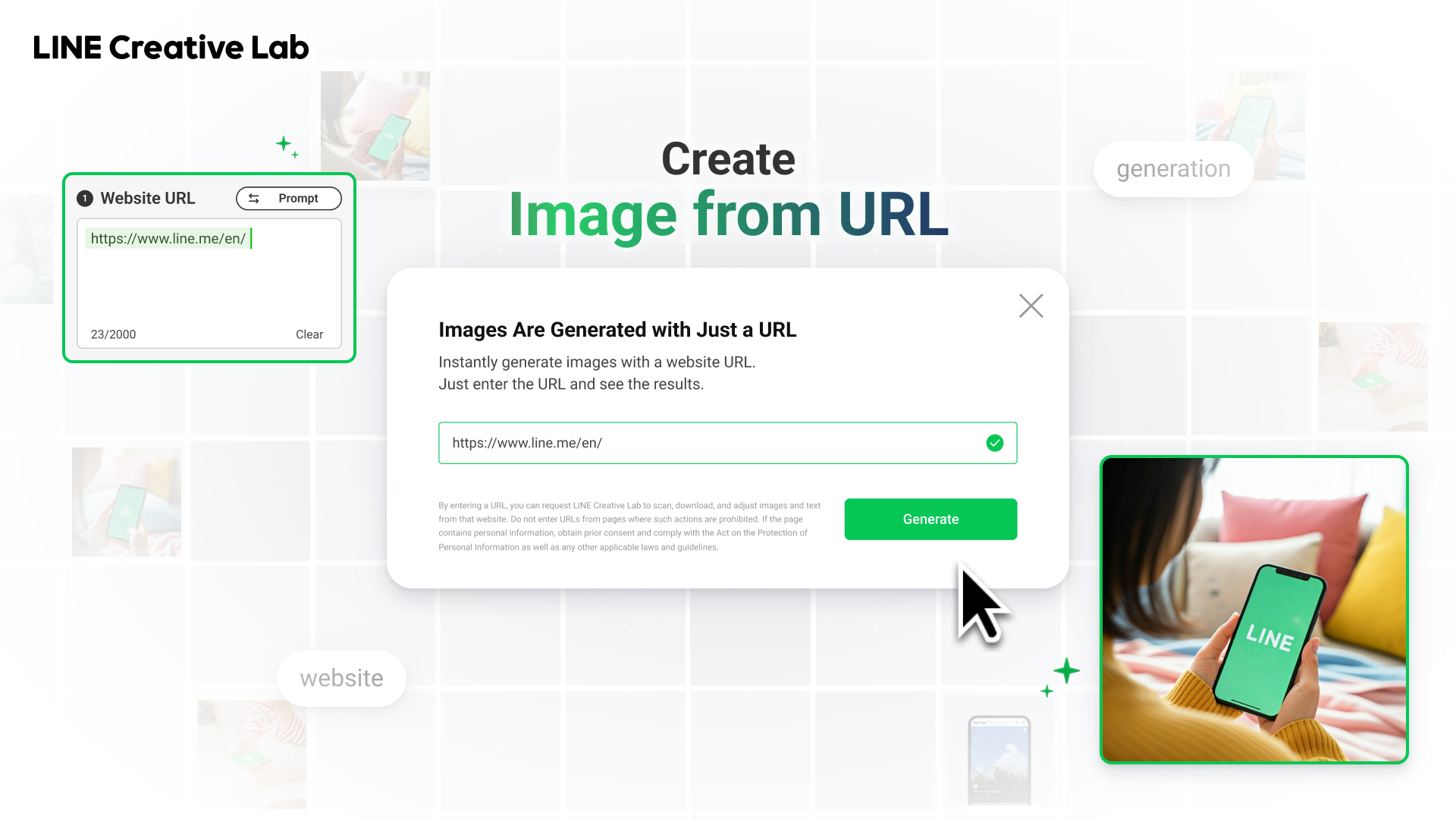
Simply enter a website's URL, and you can create AI images that match the website's characteristics and style.
01 About the feature
A feature has been released in Creative Lab to generate images from URLs to increase the efficiency of content creation.
you can simply enter a website URL; the page content is analyzed to generate images for use as creative assets. You can then review and edit the image‑generation prompt to explore different ideas and produce custom creatives, rather than using the images as‑is.
02 How to access the feature
This feature is available in LINE Creative Lab and LINE Ad CMS.
LINE Creative lab
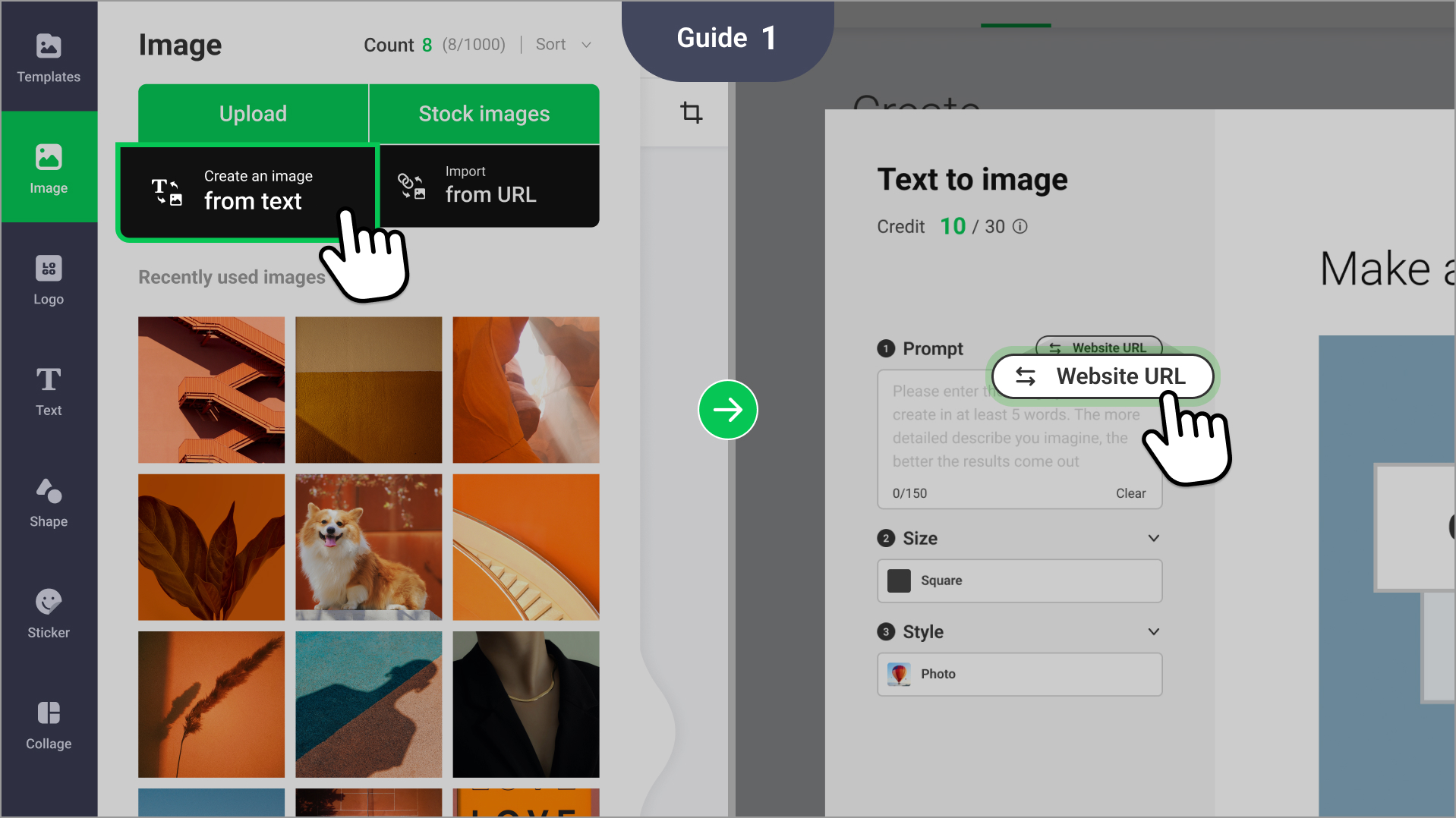
In the image editor: You can use it by clicking Website URL on the "Text to image" screen in the image editor.
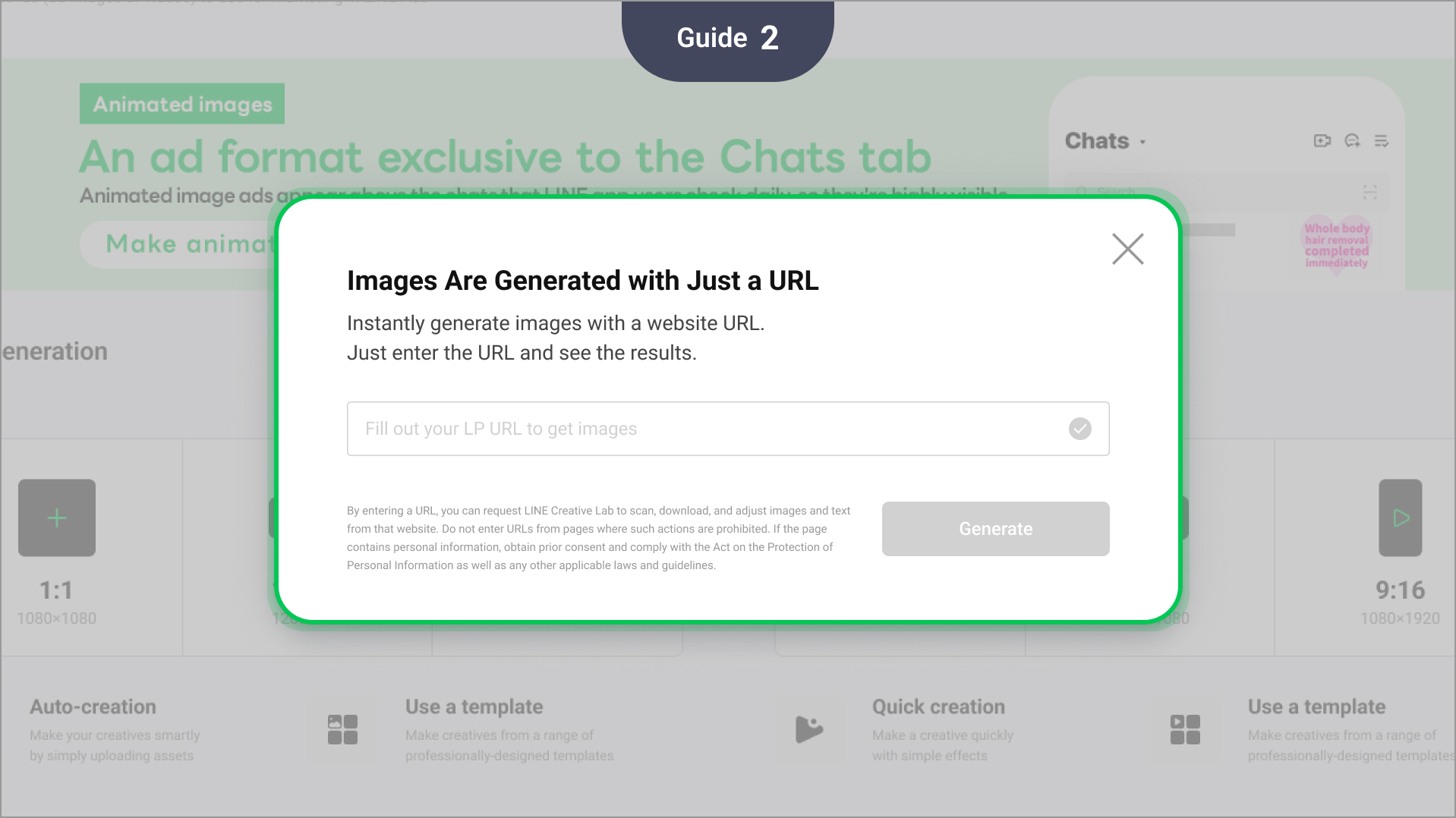
Separate pop-up on the Create page: It will also be provided as a separate pop-up on the Create page, the starting point for making creatives
LINE Ads CMS
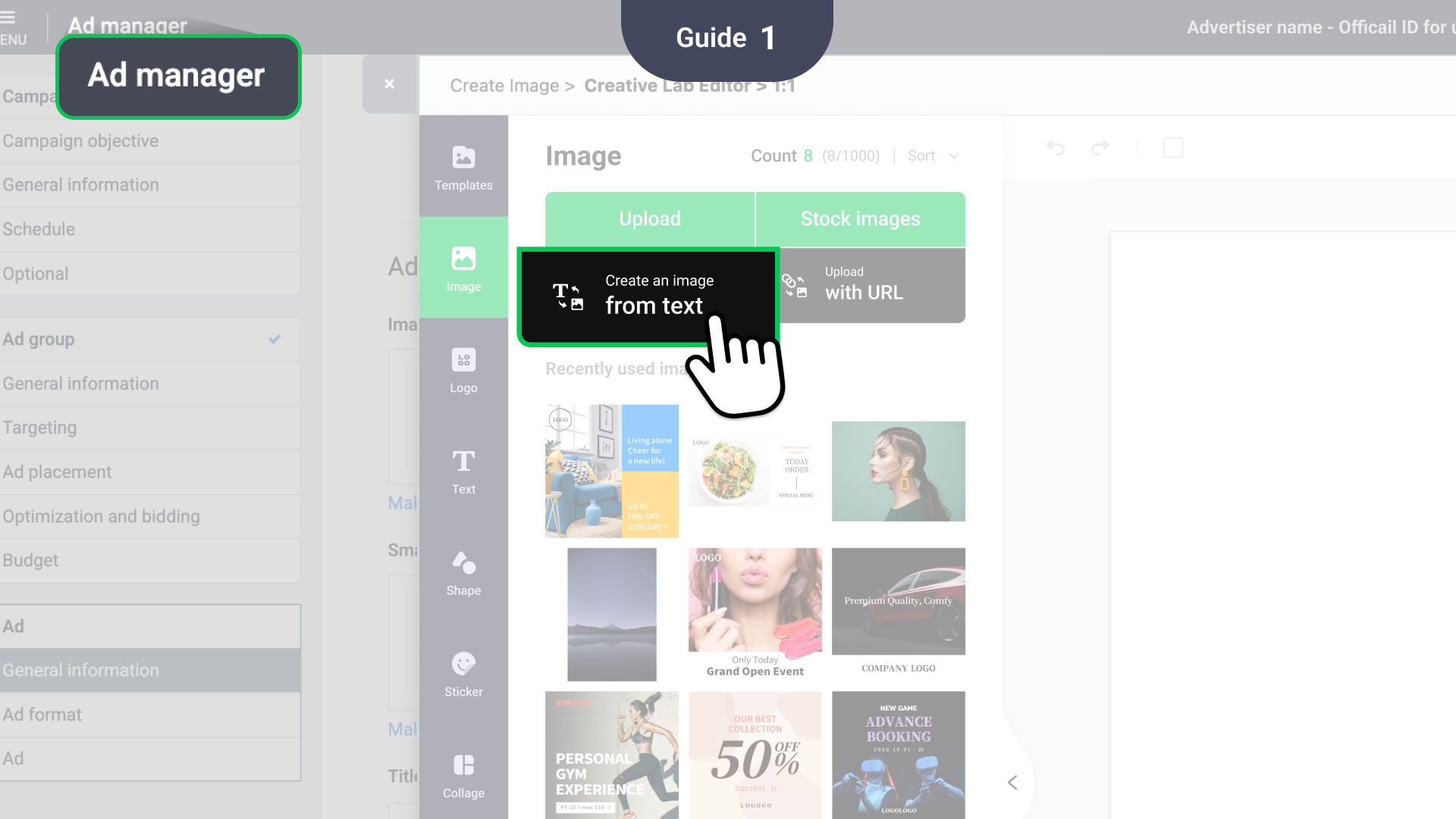
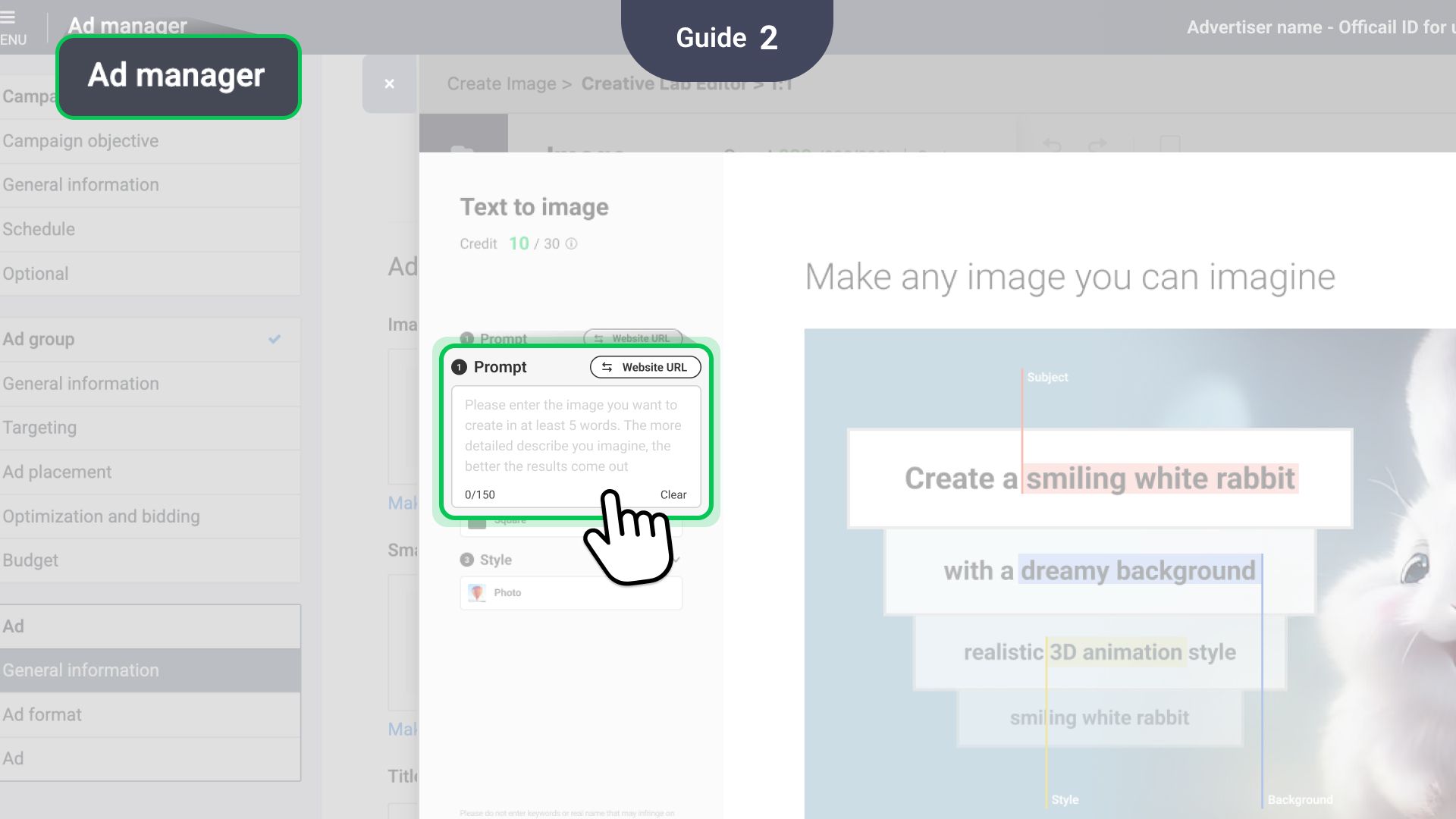
Ad Registration Screen: Available for use in the "Create Images" section within the Ad Create page.
03 How to use the feature
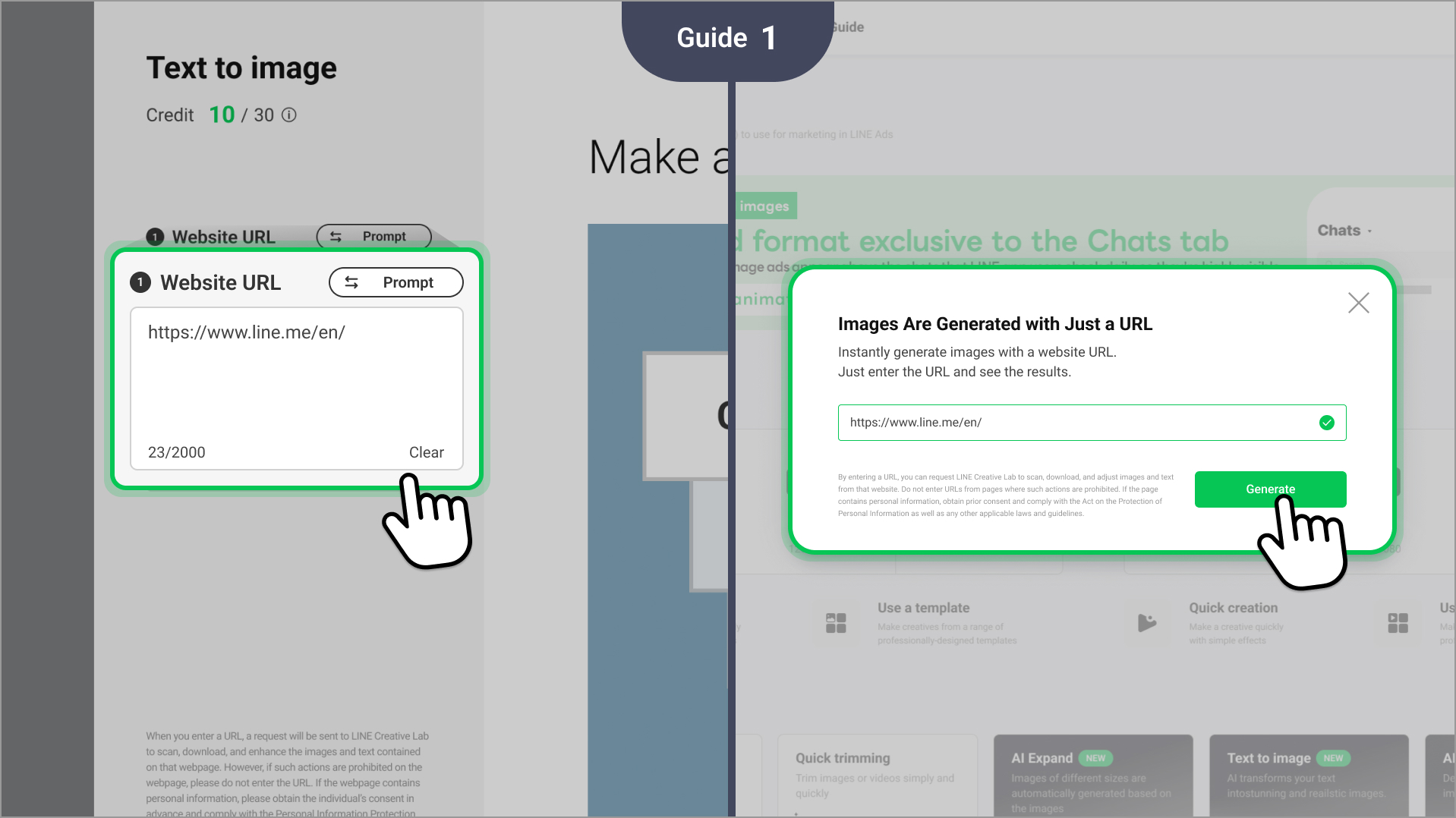
Inputting a URL: Enter a website URL in the correct format.
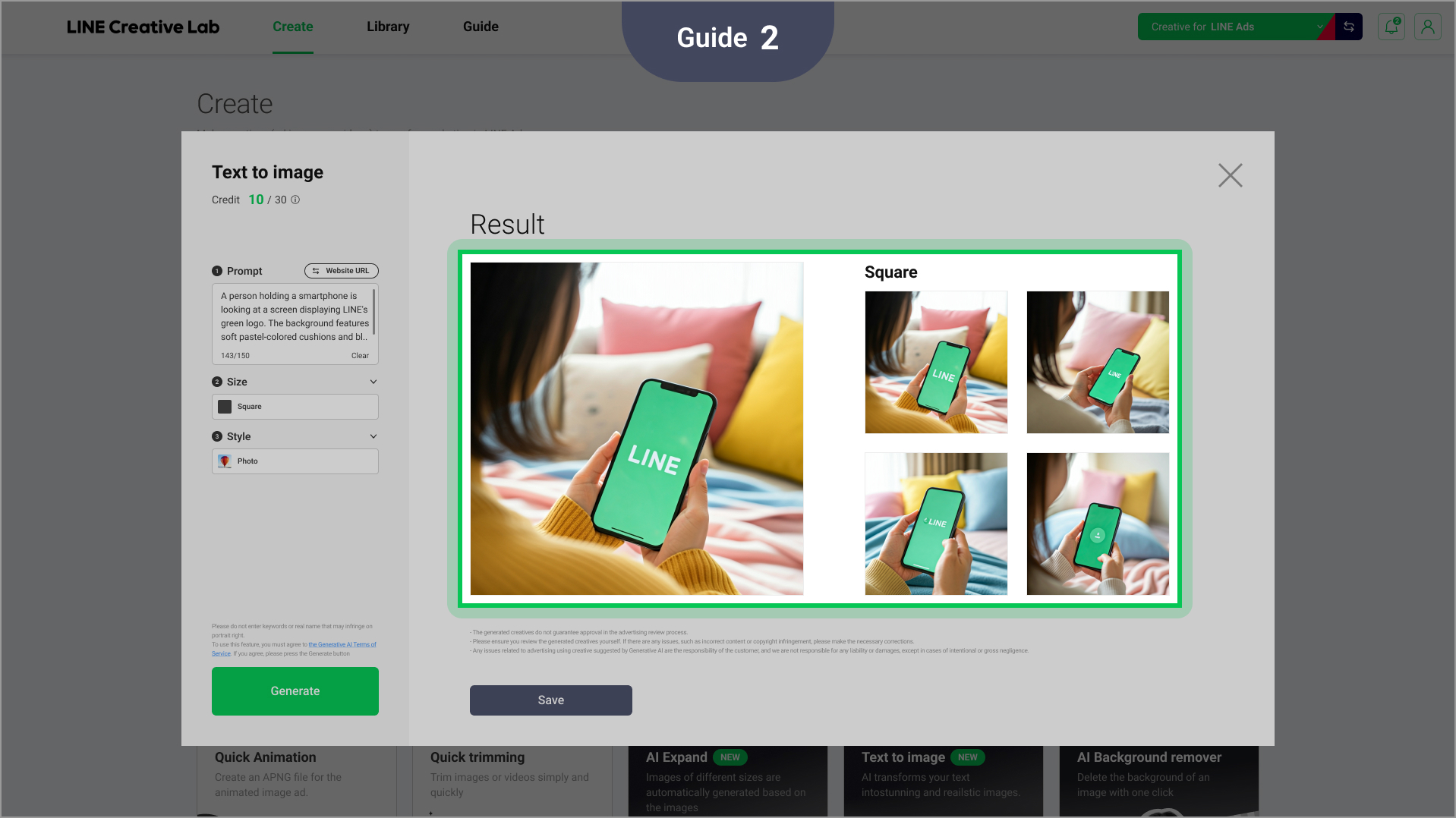
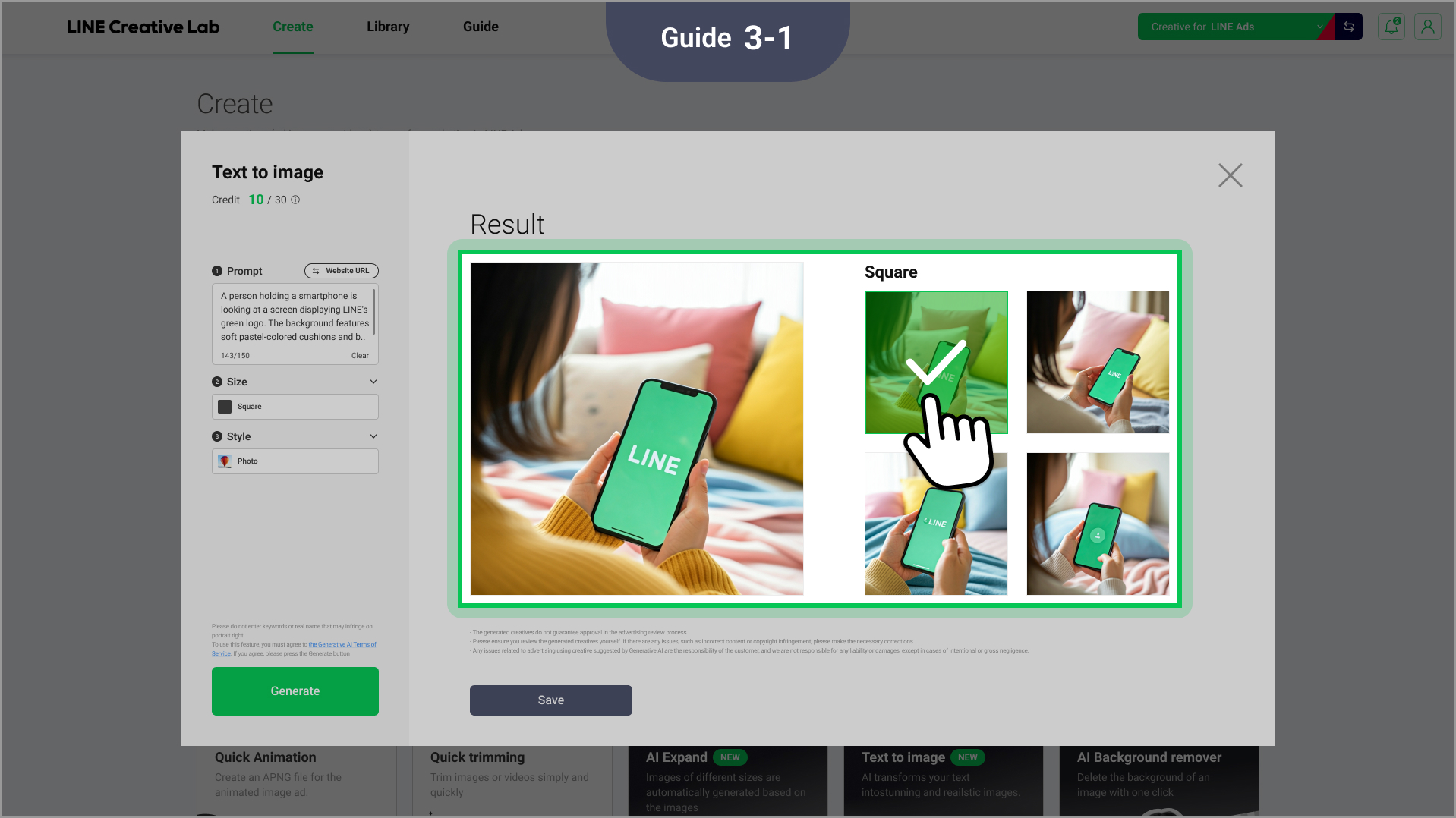
Analyzing the URL and generating candidate images: The information in the website URL you entered will be analyzed and a pool of candidate images will automatically be generated.
- Selecting an image or modifying the prompt:
1. Select the desired image from the generated candidate images.
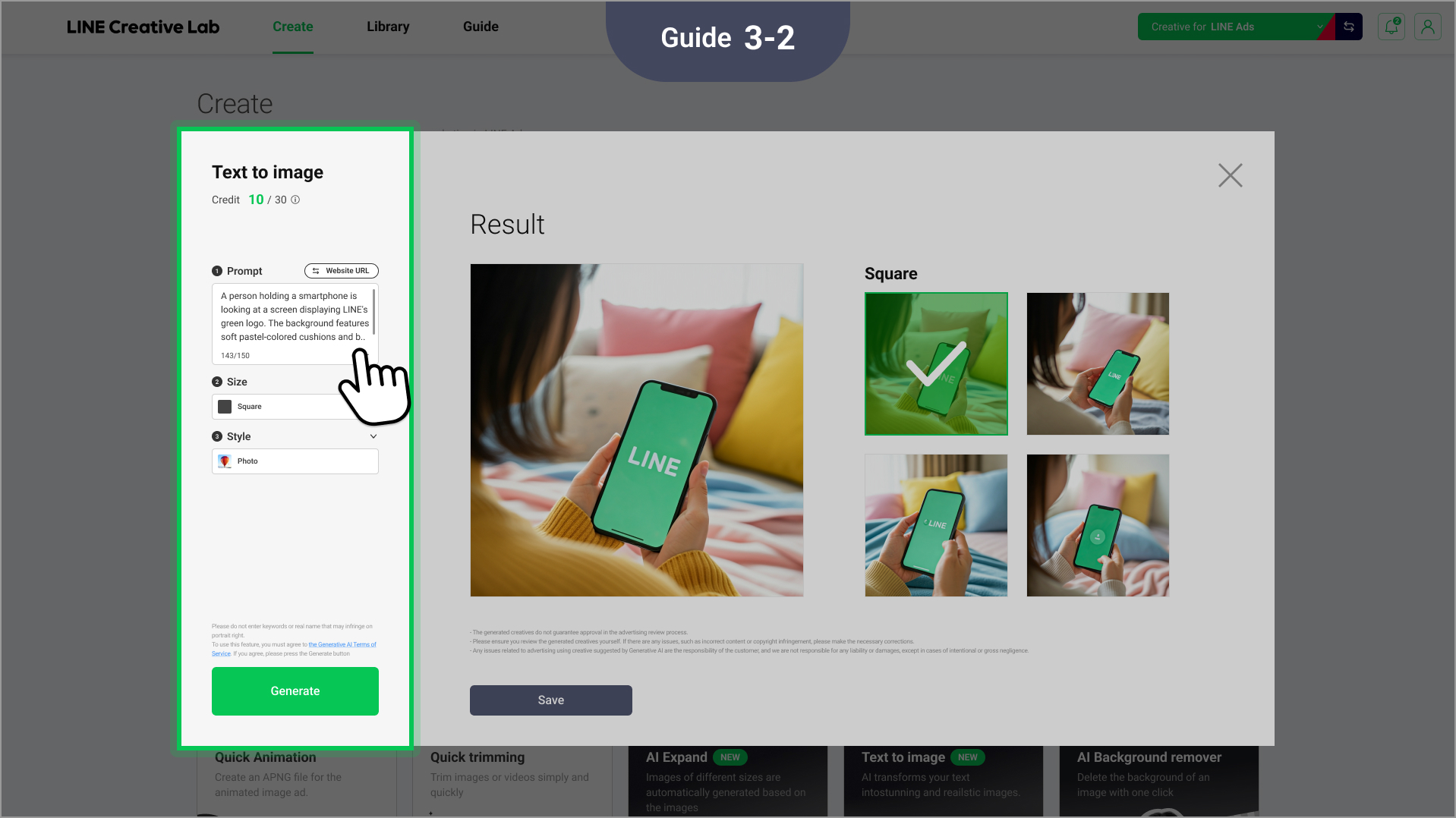
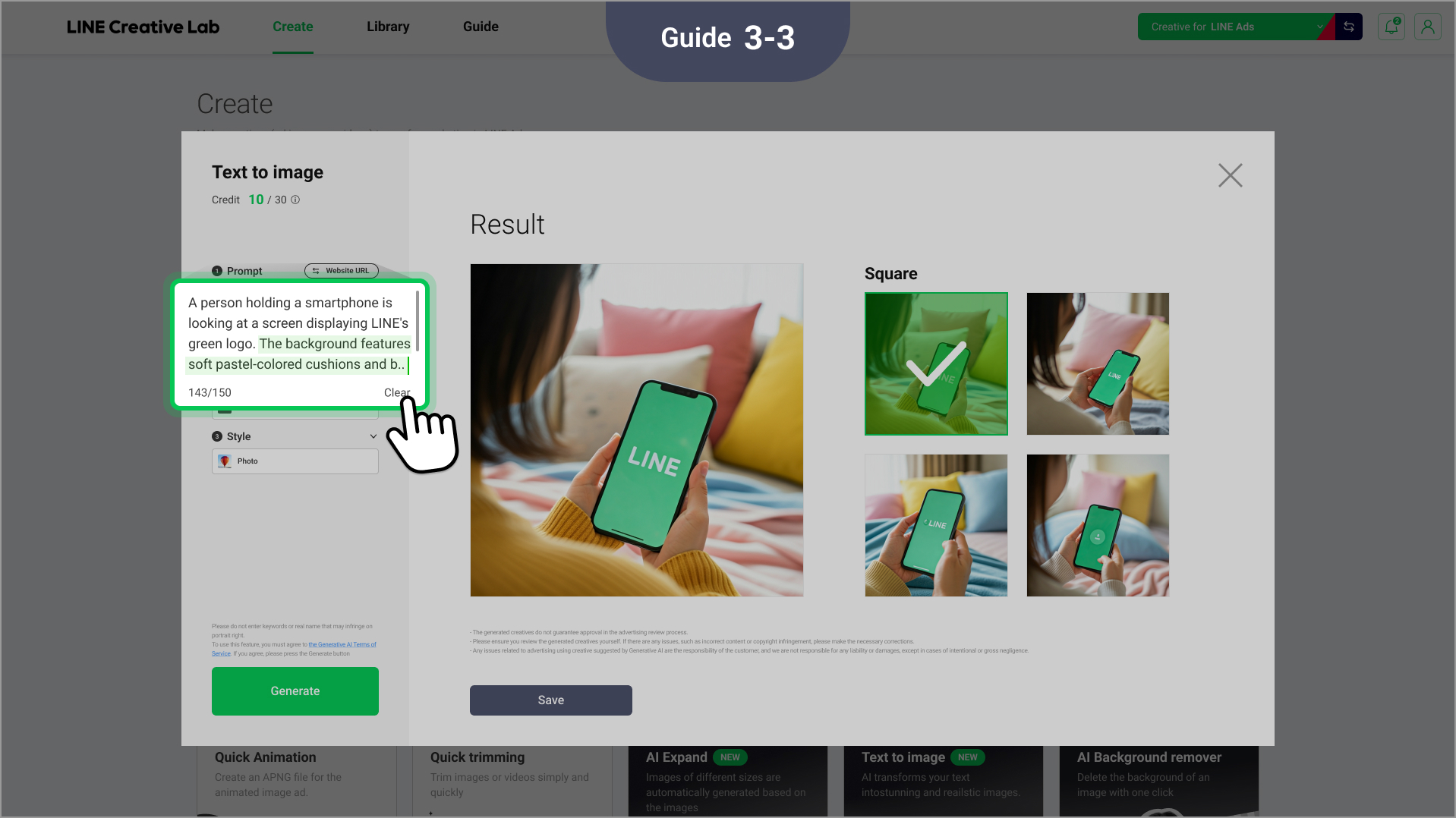
2. You can check the prompt used to generate that image immediately.
3. You can modify the prompt directly with additional information or style details to create a new image. - Storing and using images:
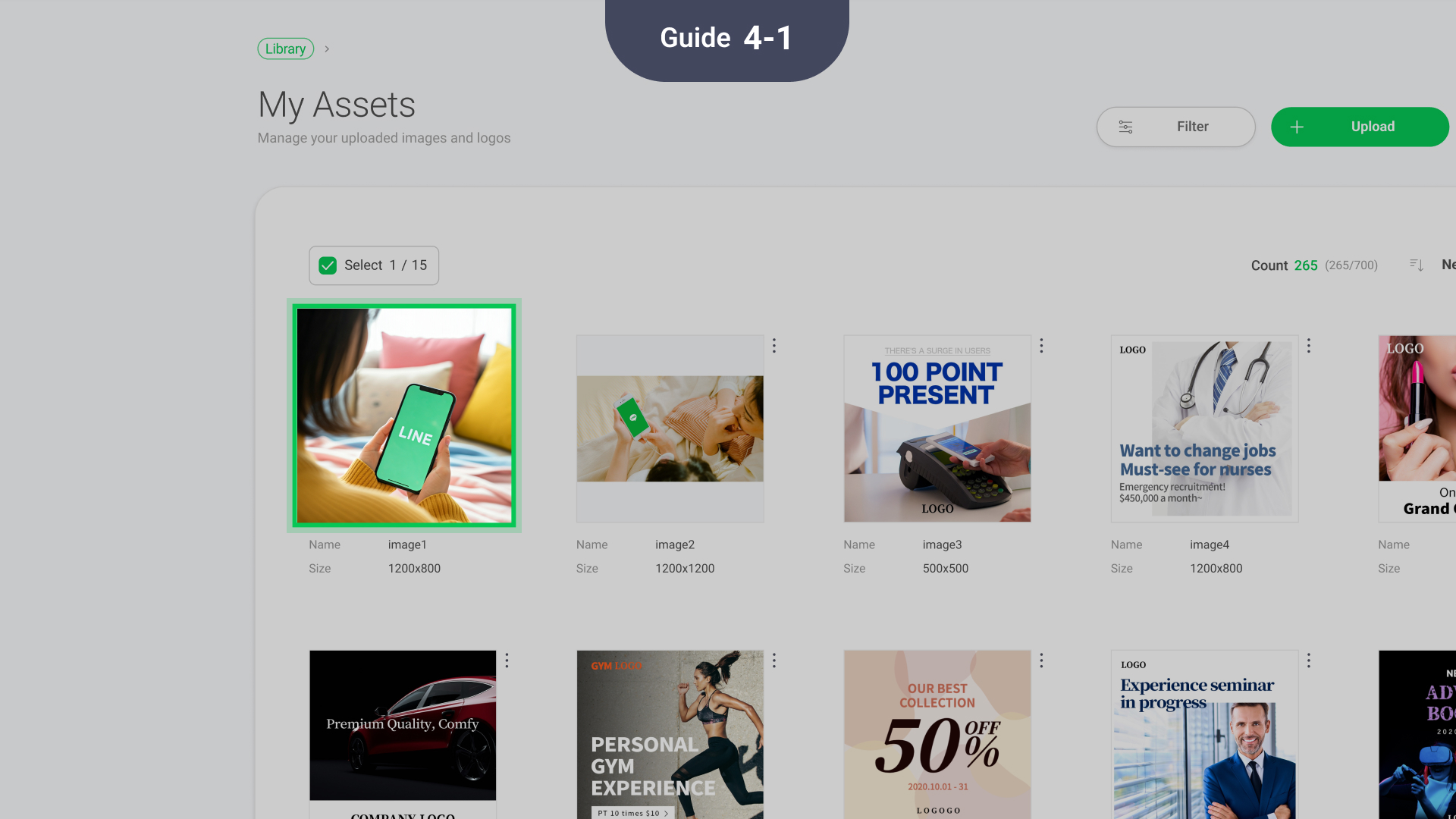
1. Save the finally selected or newly generated image in My assets.
2. The saved image can be immediately loaded from the desired editing feature and used for making creatives.
Note
* By entering a URL, you authorize LINE Creative Lab to scan, download, and edit images and text on that webpage. Do not enter a URL if these actions are prohibited by the site. If the page contains personal information, ensure you comply with the Personal Information Protection Act and other applicable laws and guidelines on handling personal information (e.g., obtaining prior consent) before entering the URL.